
The Short Answer
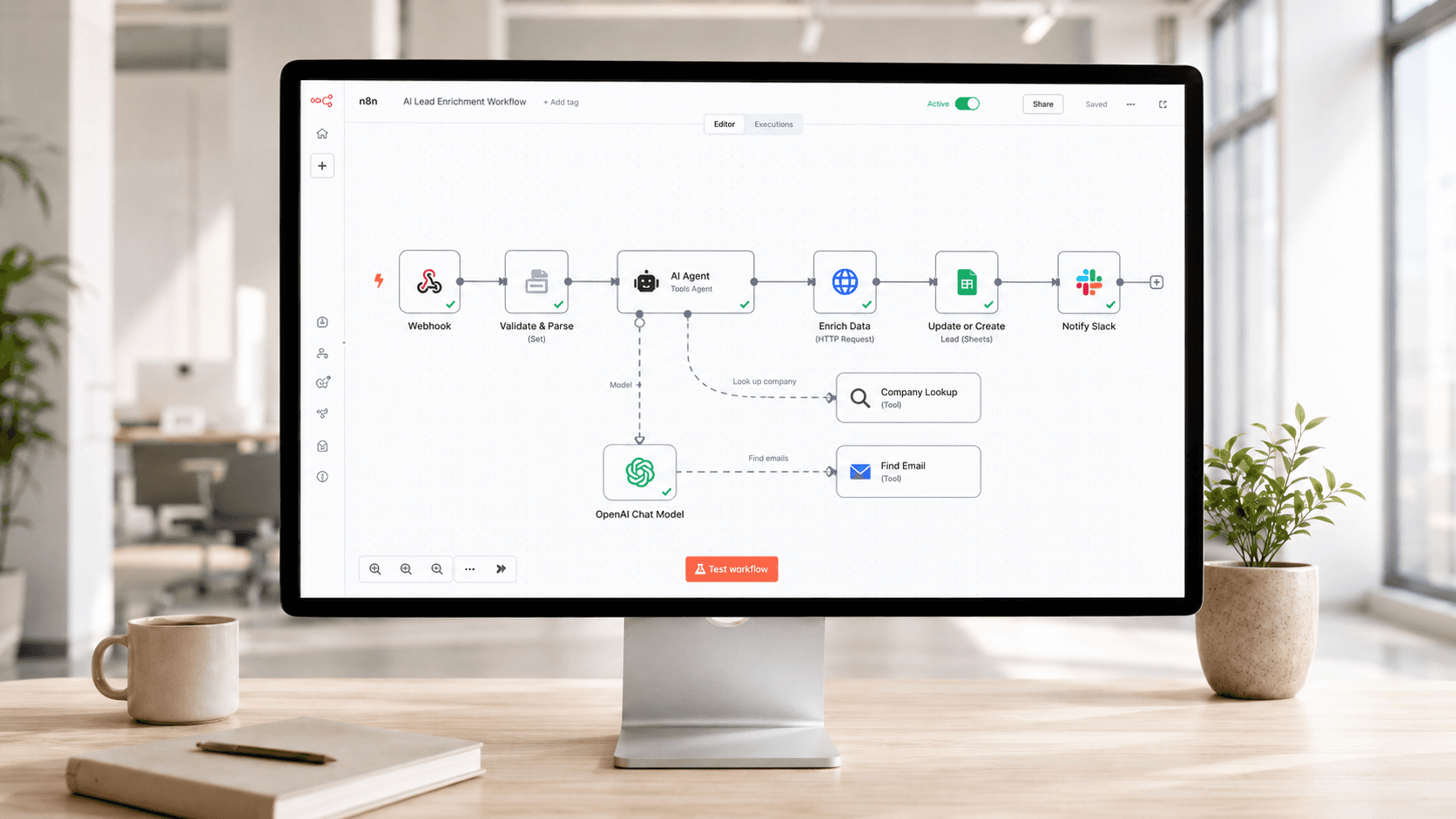
Route your n8n AI calls through your TokenSense endpoint and every call is logged with its exact cost, token count, and the workflow that spent it. One URL swap, one API key, five-minute setup — no SDK, no code changes. With per-workflow cost attribution, you go from staring at a single total on your OpenAI bill to seeing that your lead scoring workflow costs $4.20 per day while your email drafting workflow costs $0.85. Set a budget cap per workspace or project, and TokenSense blocks requests at the limit — no silent overages.
Why does this matter? Industry research puts wasted LLM spend at 30–50% (Rebase HQ 2026; PremAI 2026; Dev.to reports a 43% waste case; Towards Data Science documents retry-driven cost multiplication). Retry storms, over-powered models, and uncapped output tokens hide behind a single shared API key. TokenSense exposes exactly where the waste sits so you can trace a $750/month bill to the three workflows actually driving it — and fix them.
Why This Matters More Than You Think
A workflow running 500 AI calls per day at $0.005 each costs $75 per month. That sounds manageable. But scale that to 10 workflows and you're at $750 per month — with no idea which one is driving the spend.
This is the situation most n8n users hit somewhere between "this is working great" and "wait, what happened to our OpenAI bill?" The problem isn't that AI is expensive. The problem is that the costs are invisible. n8n tells you a workflow ran successfully. Your AI provider gives you a single monthly total. Nobody tells you that Tuesday's lead enrichment run burned $14 because someone left the max tokens uncapped.
Here's what makes it worse: AI costs aren't fixed. They change based on prompt length, model choice, output size, and retry behavior. A well-intentioned prompt edit — adding a few examples to improve quality — can quietly double your input token count. A model upgrade from your provider can change per-token pricing overnight. A retry loop on a flaky downstream step can triple the cost of a single execution.
Without per-workflow cost tracking, you're flying blind. You'll find out about cost problems on your monthly credit card statement, weeks after the damage is done.
How TokenSense Works with n8n
TokenSense is an AI gateway — think of it as a smart pass-through between n8n and your AI providers. Your workflows send AI requests to TokenSense instead of directly to OpenAI, Anthropic, or Gemini. TokenSense forwards the request to the right provider, logs everything, and sends the response back. Your workflow behaves exactly the same; it just gains full cost visibility in the process.
The setup takes about five minutes and requires zero changes to your workflow logic. Here's what you do:
Step 1: Sign up at tokensense.io and create a workspace. You'll get your TokenSense endpoint (a URL) and your TokenSense API key.
Step 2: Add your AI provider keys to TokenSense. Go to Settings → Provider Keys in the TokenSense dashboard and paste in your OpenAI key, Anthropic key, or whichever providers you use. TokenSense uses these to forward requests on your behalf.
Step 3: Update your n8n credentials. In n8n, go to the credentials for your AI nodes (OpenAI, Anthropic, etc.) and change the base URL to your TokenSense endpoint. Replace the API key with your TokenSense key. That's it — one URL, one key.
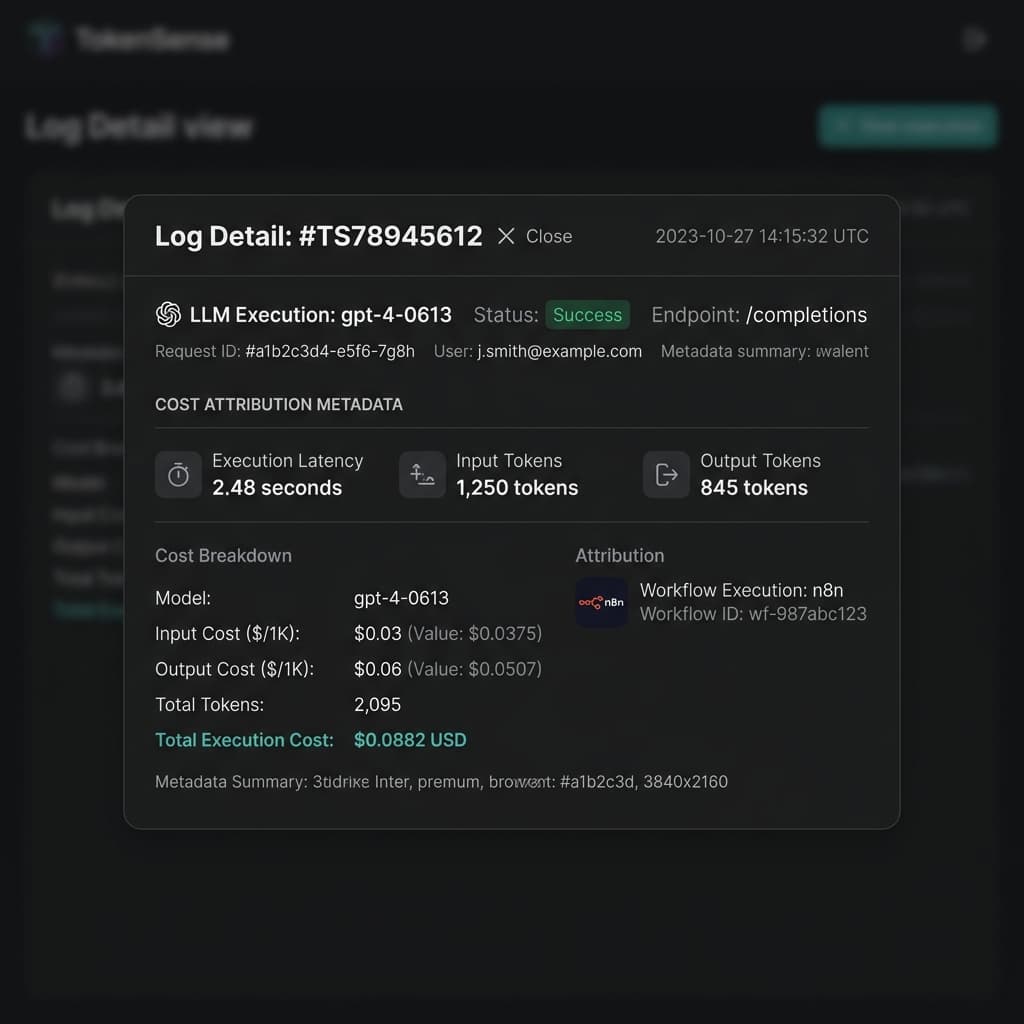
Every AI call from that point forward is automatically logged with the exact cost, token count, model used, latency, and which n8n workflow made the call. No tagging, no custom headers, no extra nodes in your workflow.
How TokenSense Attributes Costs in n8n
When your n8n workflow executes, the community node automatically tracks the name of each node and the execution number. Watch how TokenSense maps the exact cost of every single workflow step in real time.
#98231What You See in the Dashboard
Once your workflows are running through TokenSense, the dashboard lights up with data you've never had before.
The overview page shows your total AI spend, broken down by day, with trend lines so you can spot spikes immediately. Below that, you see your top workflows ranked by cost — the ones burning the most money float to the top.
Drill into any workflow and you get the detail: average cost per execution, total calls, which AI model it's using, and how token usage breaks down between input and output. This is where you find the surprises. Maybe your "simple classification" workflow is actually using GPT-4o when Haiku would do the job at one-tenth the cost. Maybe your content generation workflow is averaging 2,000 output tokens per call when 500 would be plenty.
You can also group workflows into projects — useful if you're managing AI costs across multiple clients, teams, or initiatives. Each project gets its own cost summary, so you can answer questions like "how much are we spending on AI for Client A versus Client B?" without digging through spreadsheets.
The daily spend view shows you exactly when costs spike. That Thursday when spend jumped 3x? Click into it and see which workflow caused it, what model it used, and how many calls it made. Trace the problem to its source in seconds, not hours.
Setting Budget Caps So Costs Can't Spiral
Visibility is step one. Control is step two — the step-by-step version is in how to cap OpenAI spend in an n8n workflow.
TokenSense lets you set budget caps at the workspace and project level. When spending hits the limit, requests are blocked — not just flagged. This means a runaway workflow can't silently rack up hundreds of dollars overnight. It stops, you get notified, and you decide what to do.
Here's how to think about budget caps practically. Start by running your workflows through TokenSense for a week without any caps. Look at the daily spend patterns and figure out what "normal" looks like. If your workspace typically spends $25 per day on AI calls, set a daily cap at $40 — enough headroom for natural variation, tight enough to catch a real problem.
For projects tied to specific clients or teams, set per-project budgets based on what you've agreed to spend. If Client A's contract assumes $200 per month in AI costs, set a $200 monthly cap on their project. You'll never accidentally eat into your margins because a workflow went haywire.
The key insight is that budget caps aren't about being cheap — they're about being intentional. When you know exactly what you're spending per workflow and per project, you can make informed decisions about model selection, prompt optimization, and which workflows justify their AI costs.
Quick Wins: Cutting Costs Once You Have Visibility
Once you can see what each workflow actually costs, a few optimizations tend to jump out immediately:
Switch over-powered models. The most common win is finding workflows that use a frontier model for simple tasks. Classification, routing, and data extraction rarely need GPT-5.5 or Claude Opus 4.8. Switching these to GPT-5.4-mini, Claude Haiku 4.5, or Gemini 3.5 Flash can cut costs by 80-90% with no noticeable quality drop. TokenSense shows you exactly which workflows use which models, so you can prioritize the swaps.
Cap output tokens. If a workflow only needs a 50-word summary, but you're letting the model generate up to 4,096 tokens, you're paying for headroom you don't use — and occasionally getting back a 2,000-word essay you'll throw away. Set max tokens to match what you actually need.
Fix retry loops. A workflow that retries AI calls on downstream failures can multiply your costs without any visible error. If TokenSense shows a workflow making 3x more calls than expected, check for retry behavior in your n8n execution history — retries are the most common cause of a sudden jump, and there is a full diagnostic order in why your n8n AI bill spiked.
Consolidate similar calls. Two workflows that both classify incoming emails? Combine them into one shared classification step and route the results. Fewer AI calls, lower costs, simpler maintenance.
These aren't theoretical savings. Teams typically cut 30-50% of their AI spend within the first two weeks of having per-workflow cost visibility — just by fixing the obvious inefficiencies they couldn't see before.
See Your Costs in Five Minutes
If you're running AI-powered workflows in n8n and you don't know exactly what each one costs, you're leaving money on the table — and taking on risk you can't quantify.
TokenSense gives you per-workflow, per-project cost tracking with a five-minute setup. No code changes, no SDK, no disruption to your existing workflows. Follow the n8n integration guide — swap one URL, add one key, and your next AI call is already being tracked.
Start free at tokensense.io and see where your AI budget is actually going.